GenAsset ComfyUI tutorial
Use the GenAsset Manager
Open the GenAsset panel in ComfyUI, check connection status, import workflows, refresh recent assets, and update the node pack.
Goal
SOLOCloud Run validated
Use the GenAsset Manager inside ComfyUI as the everyday control panel for setup, importing workflows, and checking workflow health.
Setup
- Install or update ComfyUI-GenAsset, then restart ComfyUI.
- Click the GenAsset button in the ComfyUI top bar.
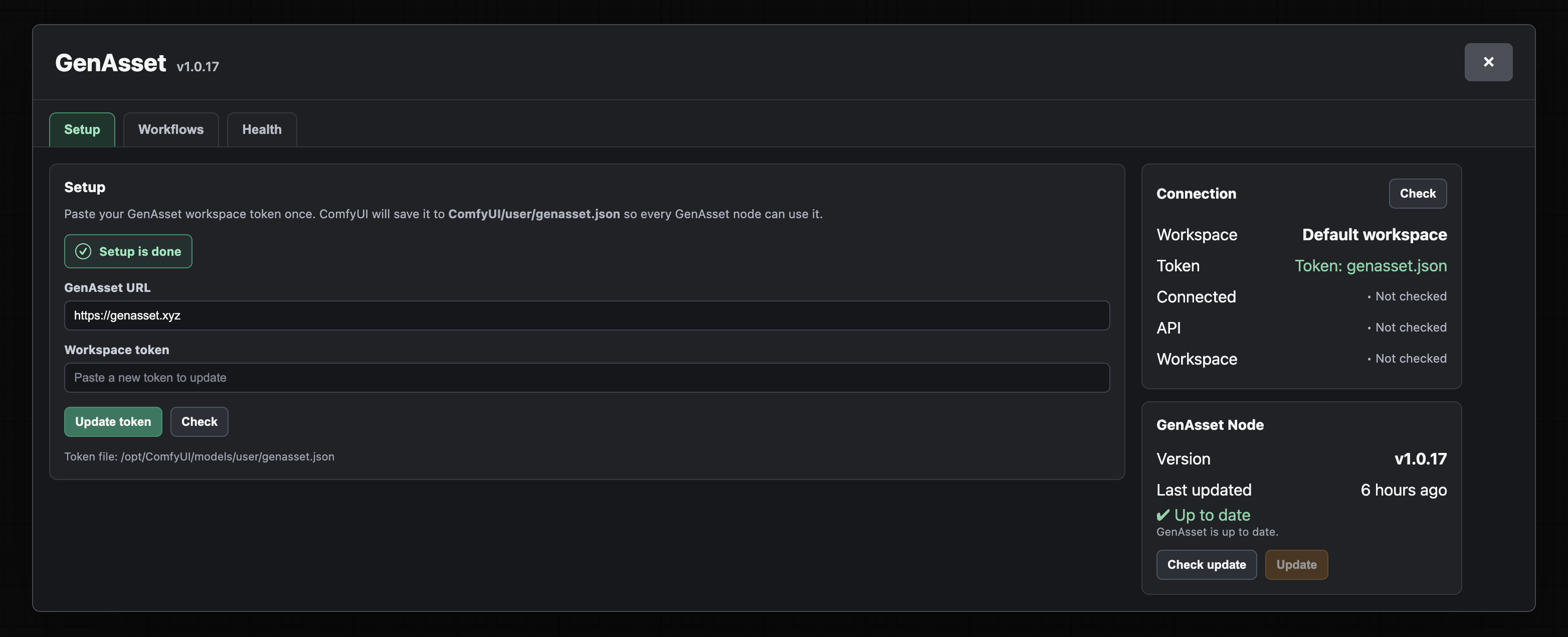
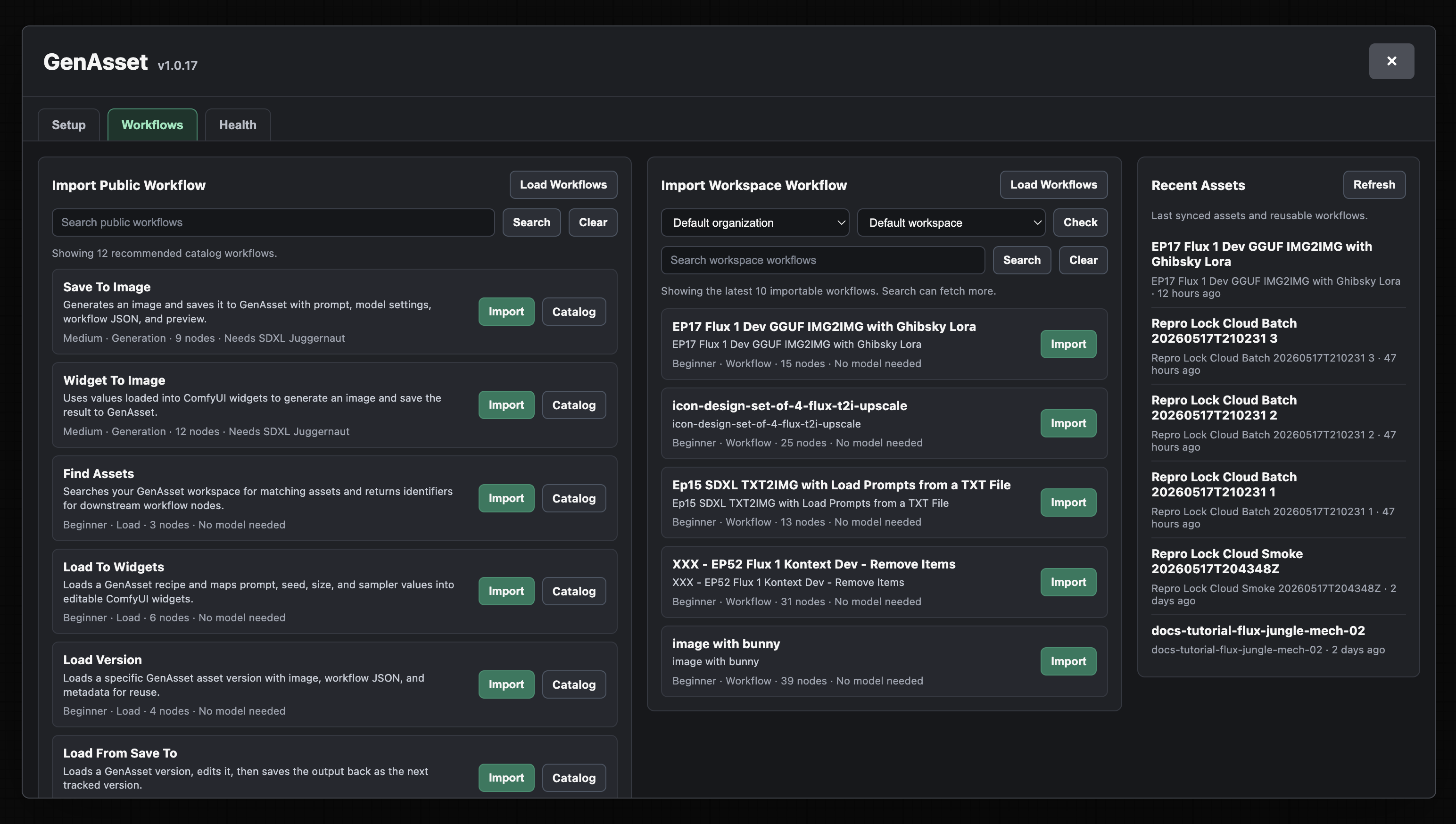
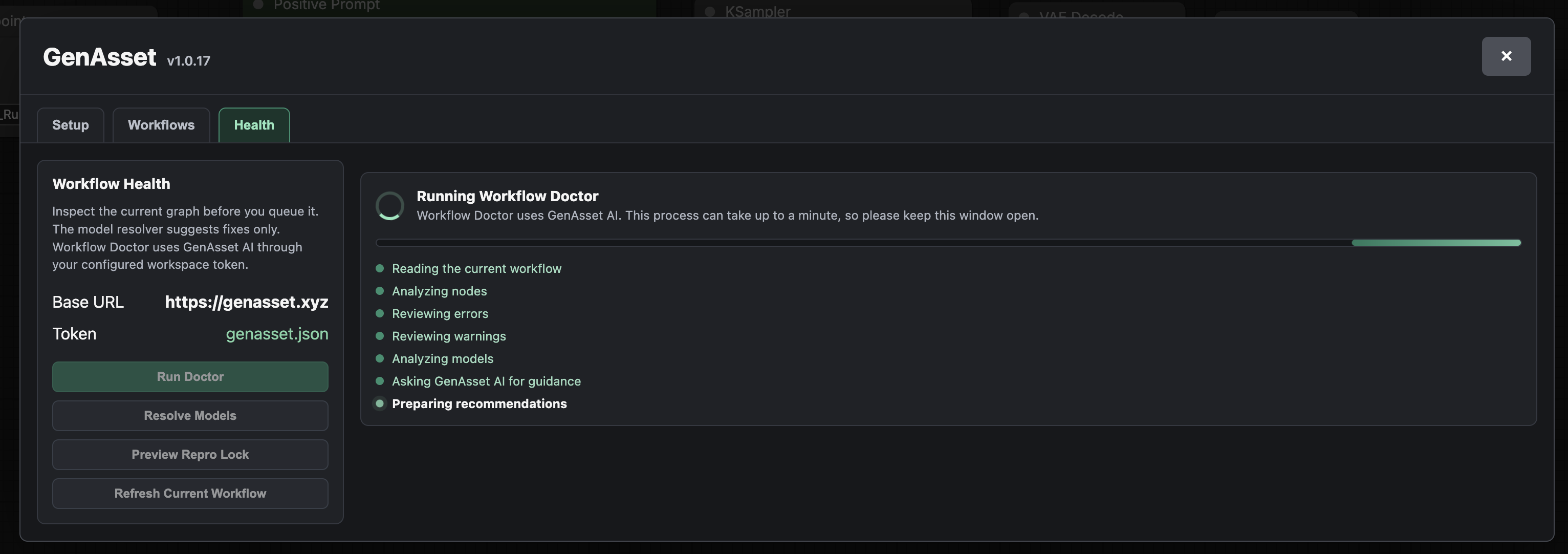
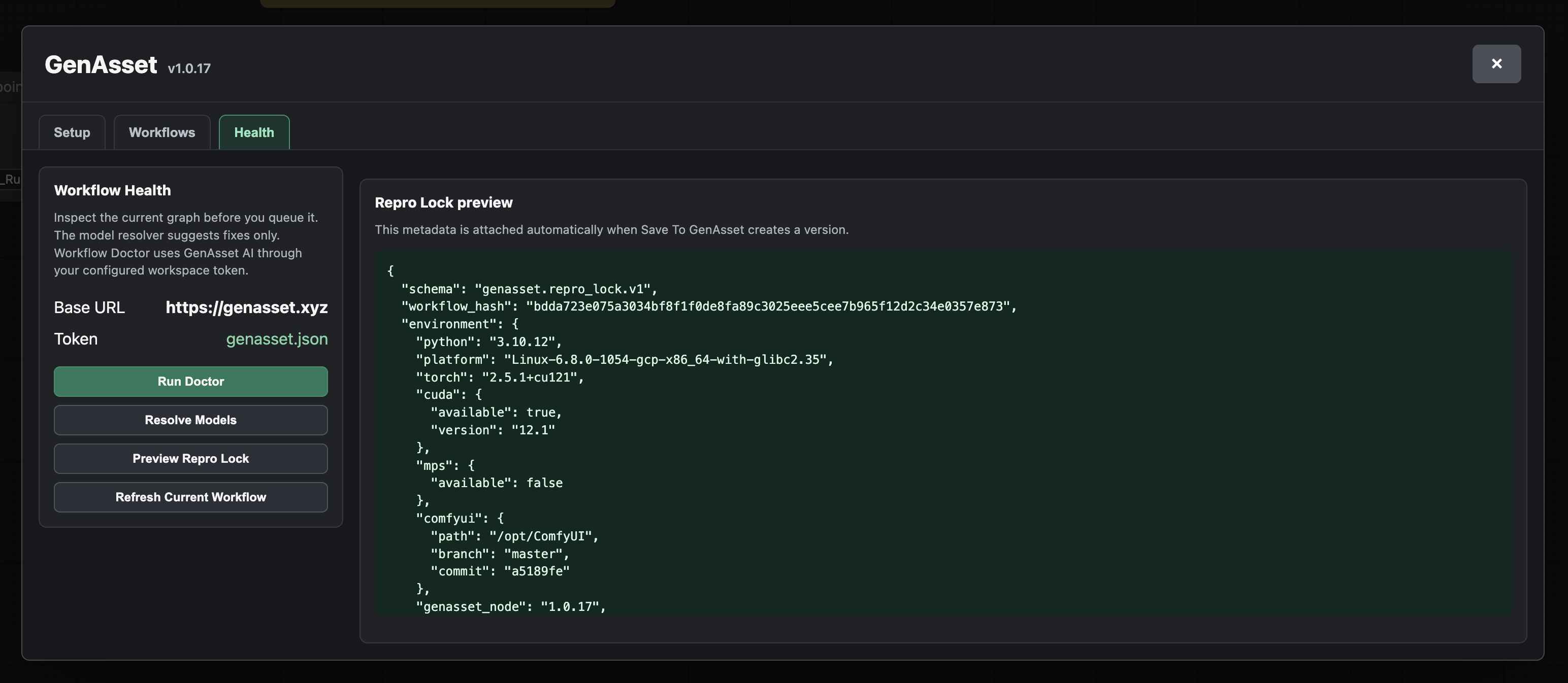
- The Manager has three tabs: Setup, Workflows, and Health.
- Setup stores your token into ComfyUI/user/genasset.json so every GenAsset node can reuse it.
- Workflows imports catalog or workspace workflows directly onto the canvas.
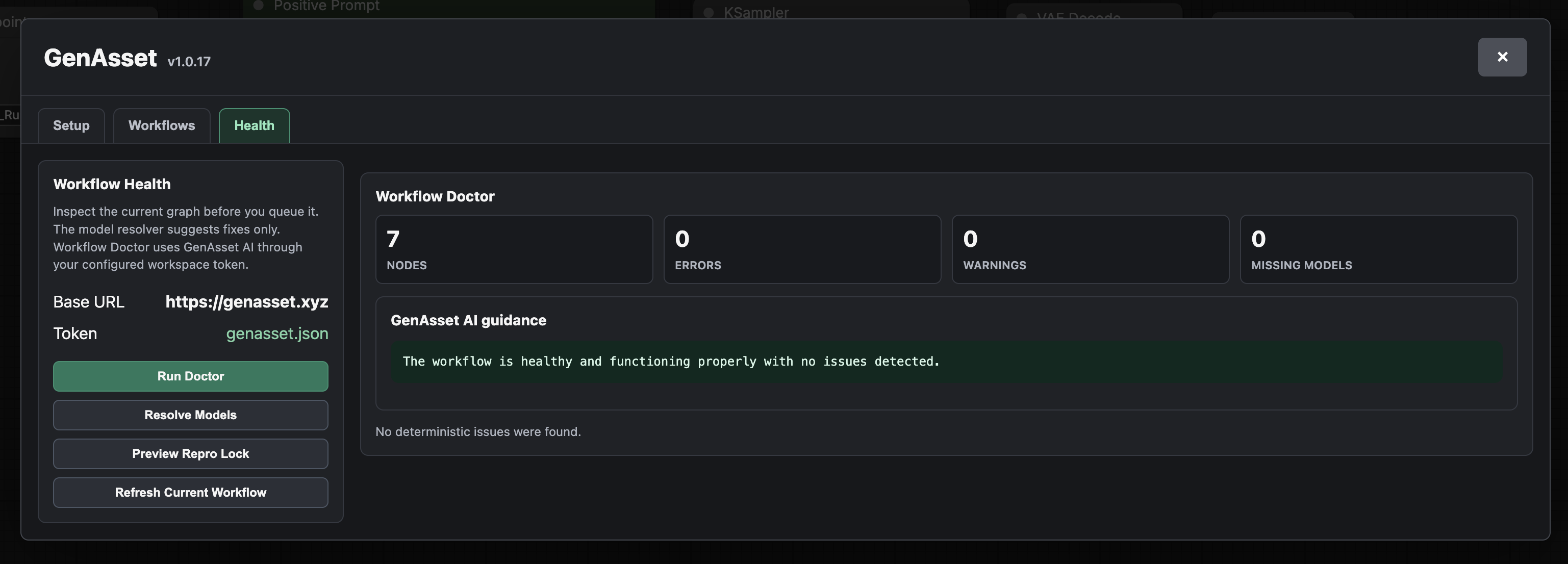
- Health checks the current workflow before you queue it.
Steps
- Open Setup first. Paste a workspace token only when you need to create or update genasset.json.
- Use Check to confirm the token, API, and workspace are reachable.
- Open Workflows to import recommended public workflows, workspace workflows, or recent reusable assets.
- Open Health before running unfamiliar workflows.
- Use Resolve Models for deterministic missing-model checks.
- Use Run Doctor for GenAsset AI guidance, and Preview Repro Lock to see the metadata Save To GenAsset will attach.
Validated run
- The Cloud Run panel reported GenAsset v1.0.17 behavior, connected token file, API reachable, and workspace synced.
- Health tab checks detected missing models, missing custom nodes, broken links, and video/heavy workflow warnings; Run Doctor returned GenAsset AI guidance through OpenAI gpt-4o-mini.