GenAsset ComfyUI tutorial
Text to image
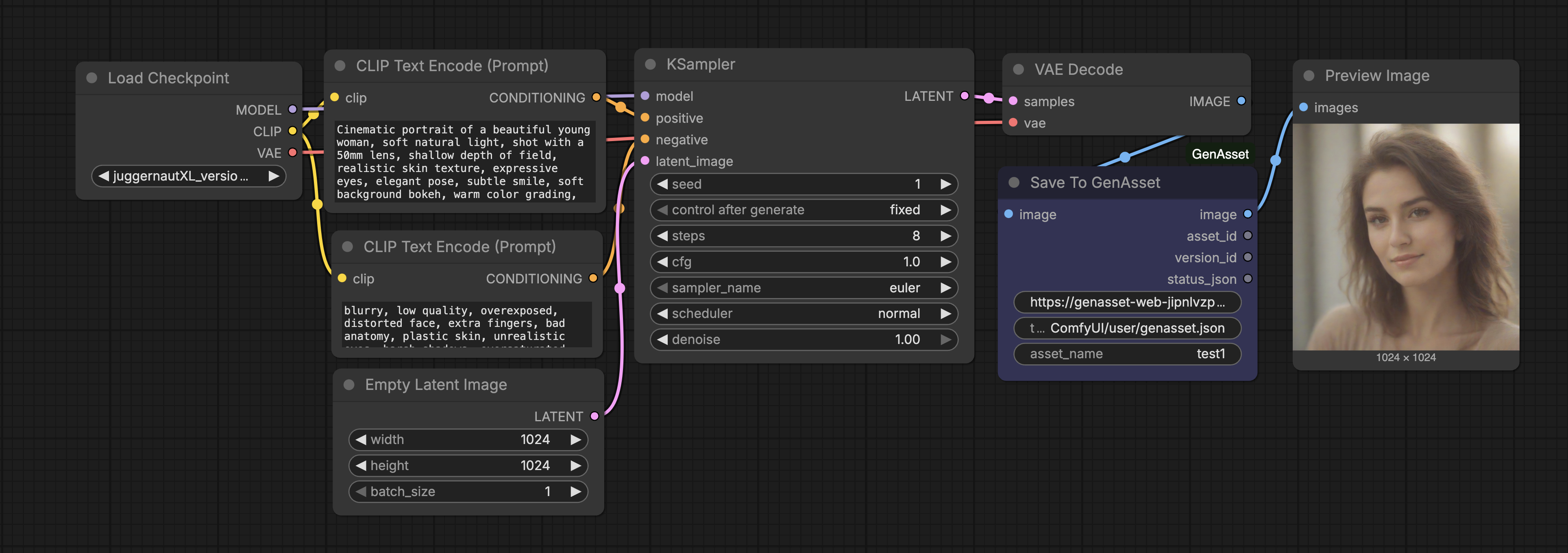
Generate a new image, save it through Save To GenAsset, and verify the asset/version IDs in the dashboard.
Goal
SOLOCloud Run validated
Generate a new image and save the output plus prompt, model, seed, workflow JSON, preview, and Repro Lock metadata.
Setup
- Start from a catalog workflow such as Save To Image or your own text-to-image graph.
- Use the models required by that workflow. The pattern is the same for Flux, SDXL, or a lighter checkpoint.
- Place Save To GenAsset immediately after the decoded image.
- Connect Save To GenAsset image output to Preview Image so the save node executes.
Execution gotcha
In raw API or custom workflow wiring, Save To GenAsset must be downstream of an output path. Connect its image passthrough to PreviewImage or SaveImage.
Steps
- Set the positive prompt, negative prompt, seed, sampler, size, and model.
- Set asset_name to a readable name, for example docs-tutorial-flux-jungle-mech.
- Queue the workflow.
- Copy asset_id and version_id from Save To GenAsset outputs.
- Open the asset detail page and confirm Preview, Recipe, Versions, and Raw Data are populated.
Validated run
- Cloud Run generated and saved asset 32631e1c-411a-4ffb-a471-783d5b3e4263.
- Saved version d325c84f-6c73-4ede-8749-aa30c52c7157, later promoted to 94b21b38-7a31-47f1-87b9-4ed947807afc.
- The important custom node is Save To GenAsset. The rest of the graph can be normal ComfyUI generation nodes.